
Text Layer
A1D.AISeamlessly layer text and images
Add text behind the subject of your images to create dynamic, layered effects. Make your marketing and social media design stand out easily!
Redirects to Canva.com securely
App Preview
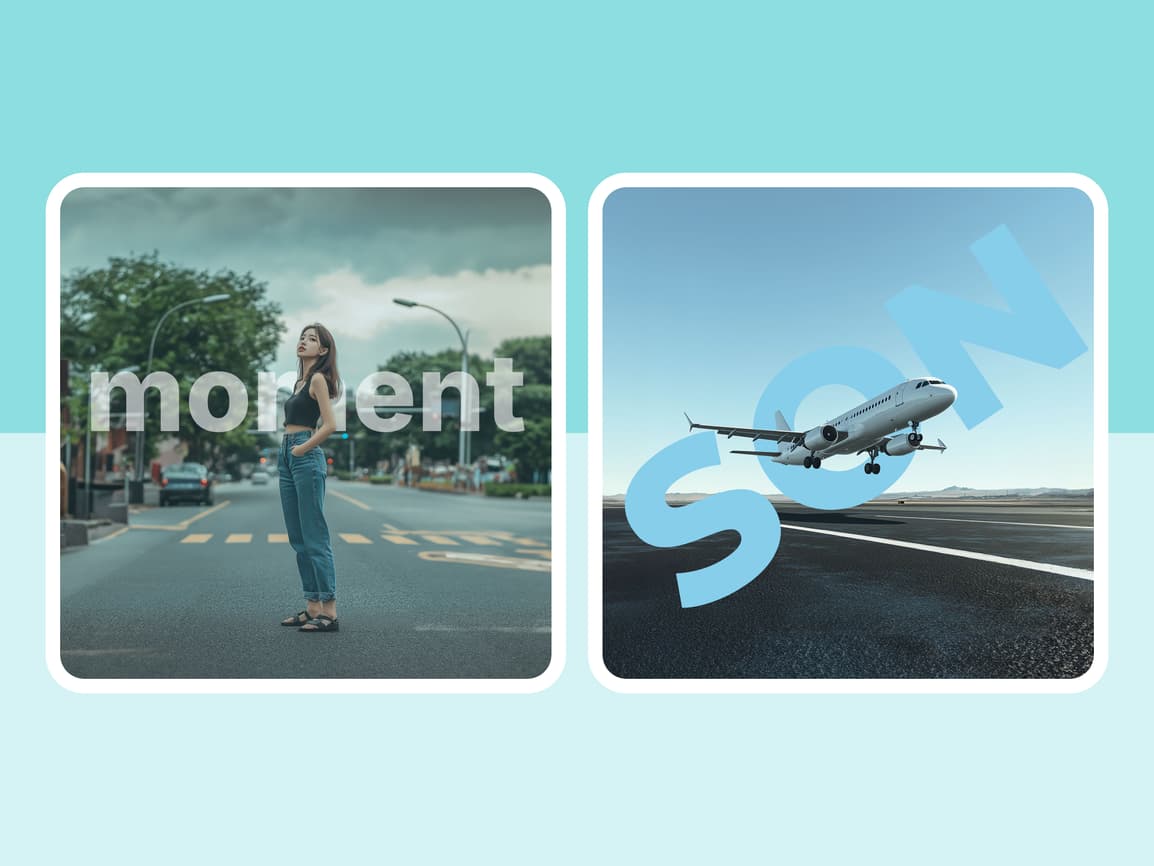
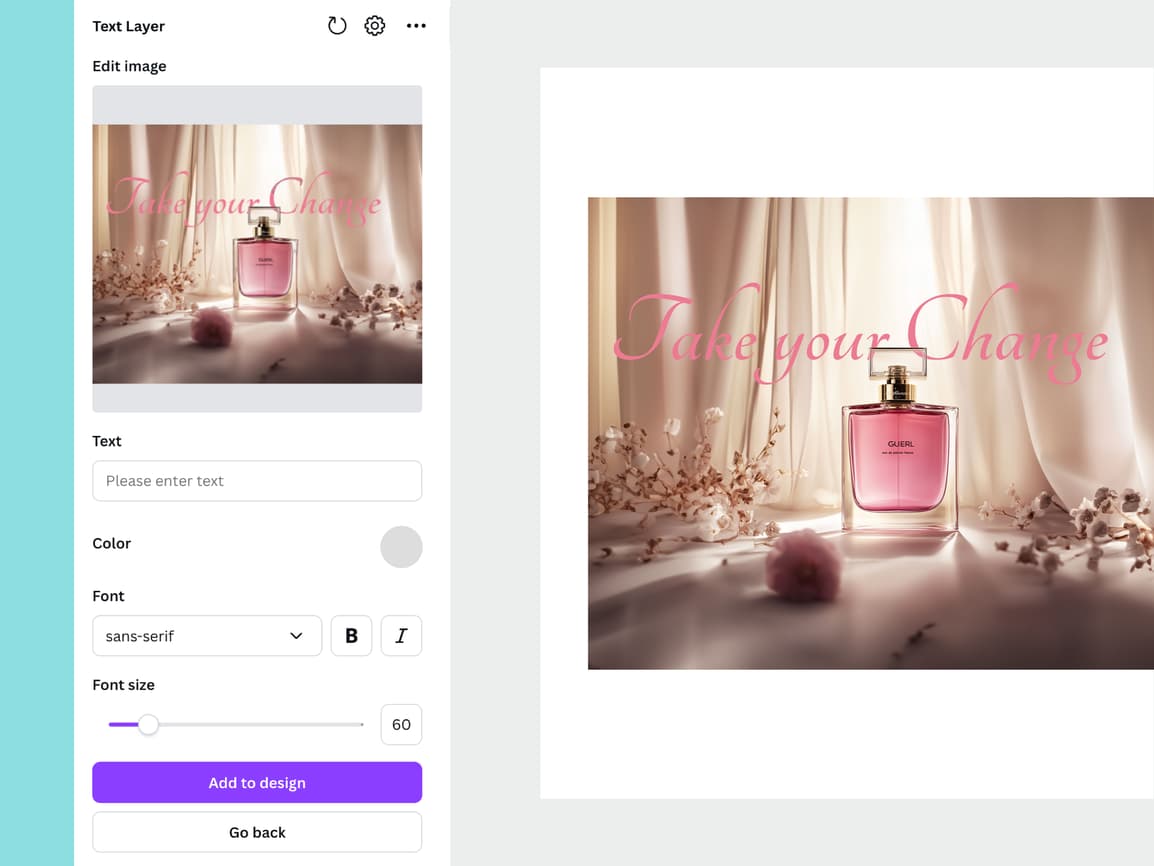
How to Place Text Behind Objects in Canva
Create professional magazine-style layouts with text behind images using Text Layer
- 1
Open Text Layer App
Launch Text Layer from Canva marketplace
Search for "Text Layer" and click to open.
- 2
Select Your Image
Choose an image from your design to separate foreground and background
Best results with: People, objects with clear backgrounds, distinct subjects.
- 3
Analyze Image
The app processes your image to separate foreground from background
Processing takes 10-30 seconds depending on image complexity.
- 4
Add Your Text
Insert text that will appear behind the foreground object
Type your text and customize: font, size, color to achieve desired effect.
- 5
Fine-Tune Positioning
Adjust text position, size, and layer order if needed
Use the layer controls to move text behind or in front of image elements.
- 6
Apply to Design
Click "Add to Design" to insert the result into your Canva design
The image now has text behind it, creating a professional depth effect.
You're all set!
Follow these steps to get the best results. For more detailed tutorials, check out our video guides.
FAQ - Text Layer
Common questions about Text Layer
Discover More Apps


Video Gen
Transform text and images into videos
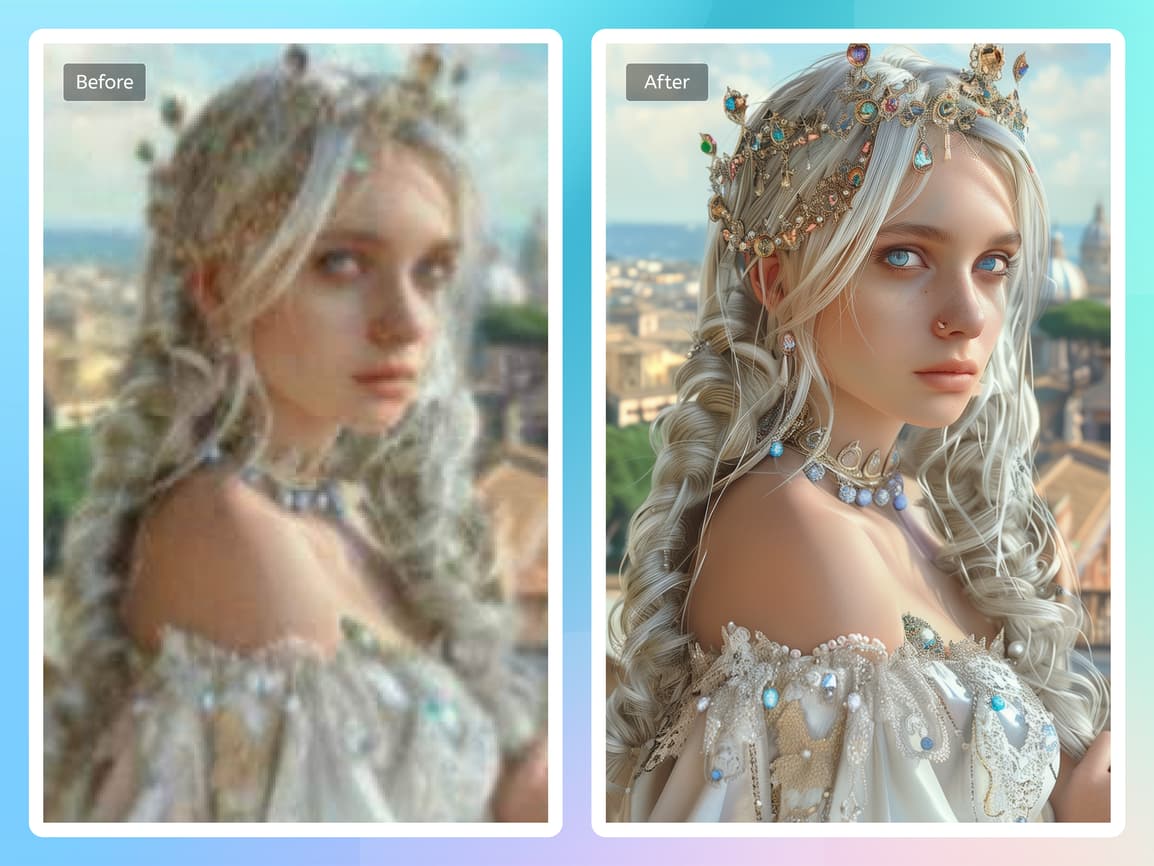

Image Upscaler
Increase image resolution and enhance with AI
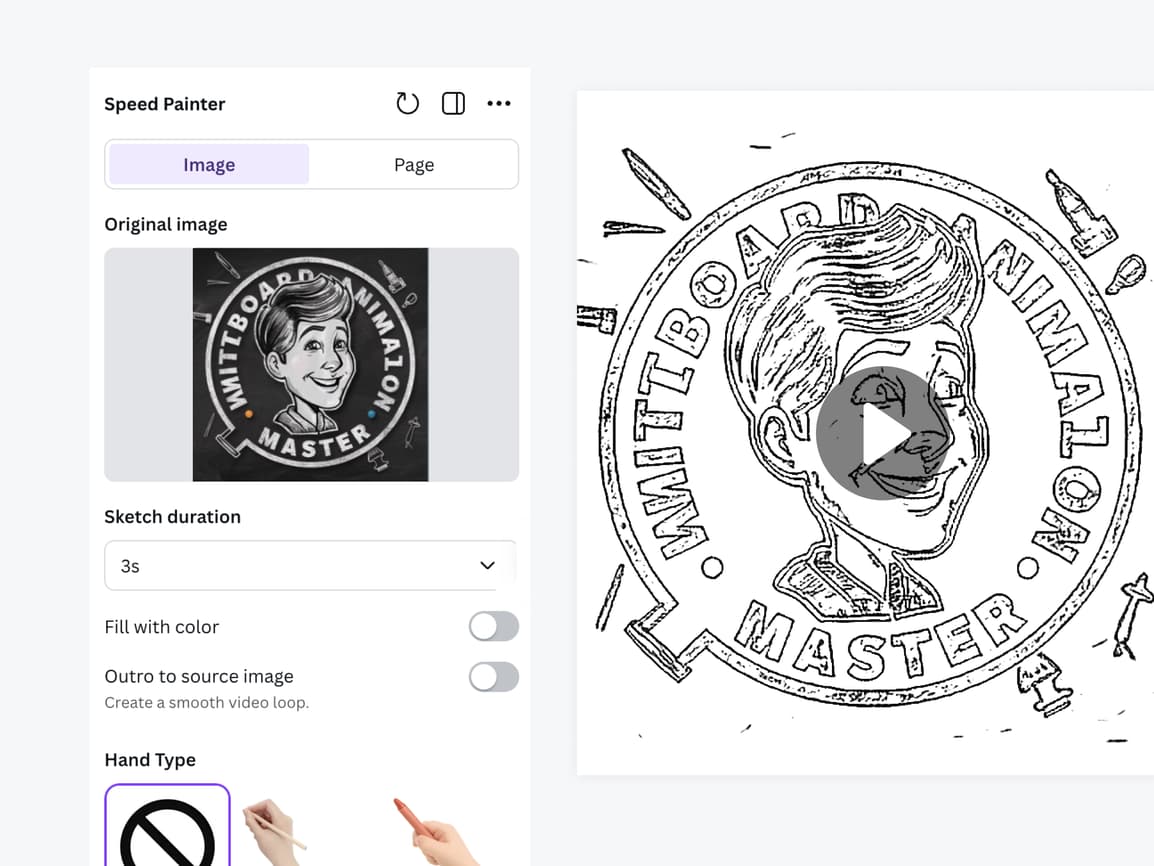
Speed Painter
Create drawing animation video in minutes