Image Upscaler
A1D.AIIncrease image resolution and enhance with AI
Utilize advanced AI to upscale and enhance a single image or the entire design, ensuring your images in Canva stand out with unparalleled clarity and detail.
Redirects to Canva.com securely
App Preview
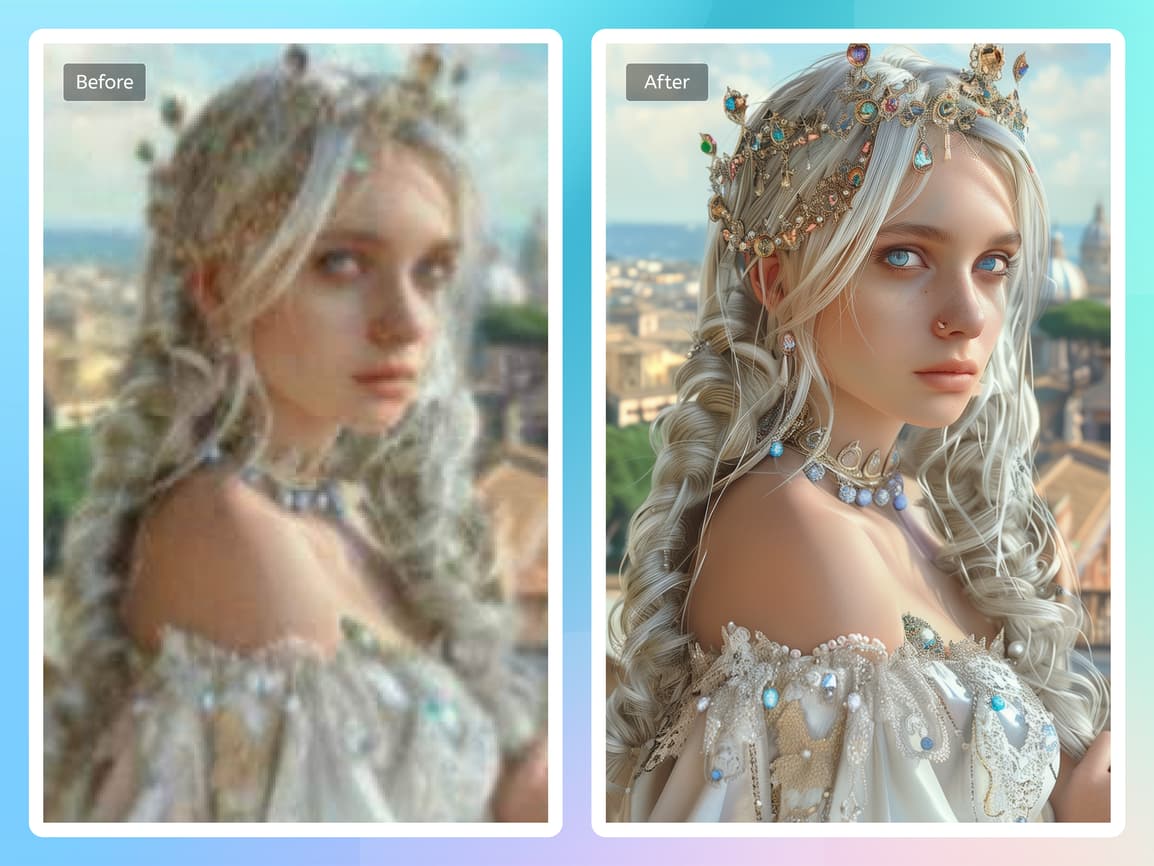
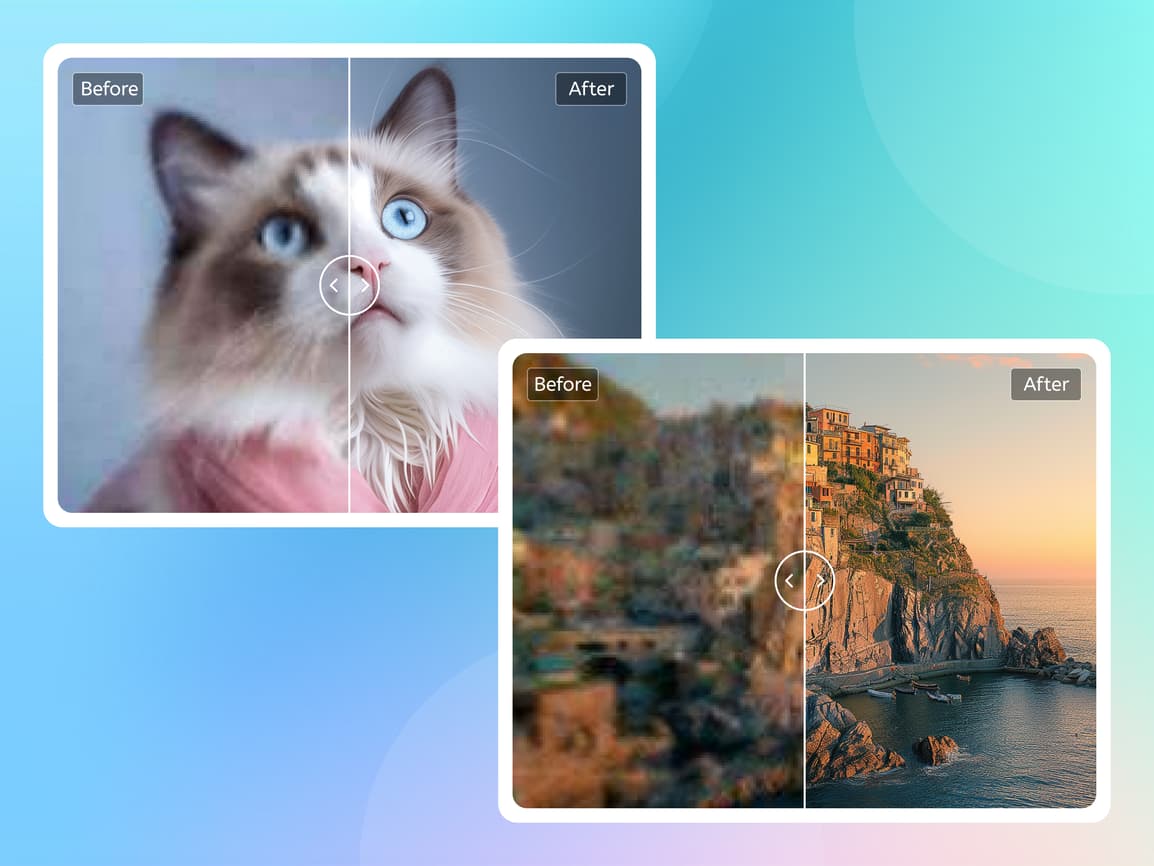
How to Upscale Images in Canva
Learn to enhance low-resolution images to 4K quality using AI Image Upscaler
- 1
Open Image Upscaler in Canva
Search for "Image Upscaler" in Canva's app marketplace
Click the app card and select "Try it now" to launch the app inside your Canva design editor. The app will appear as a sidebar panel.
- 2
Select or Upload Your Image
Choose the image from your design that you want to upscale
You can select any image element in your current Canva design, or upload a new one directly from your device. Supported formats: JPEG, PNG, WebP.
- 3
Choose Your Upscale Factor
Select your desired upscale multiplier (2x, 4x, 8x, or 16x)
Higher factors result in larger images but also require more processing time. For best results: 2x for slight enhancement, 4x for significant quality boost, 16x for maximum detail.
- 4
Process Your Image
Click the "Upscale" button and wait for AI enhancement
Processing typically takes 30 seconds to 2 minutes depending on image size. You can track progress in real-time.
- 5
Apply to Your Design
Once complete, click "Add to Design" to insert the upscaled image
The enhanced image will replace the original in your Canva design. You can now download, edit, or continue designing.
You're all set!
Follow these steps to get the best results. For more detailed tutorials, check out our video guides.
FAQ - Image Upscaler
Common questions about Image Upscaler