Video Upscaler
A1D.AIUpscale and enhance video quality with AI
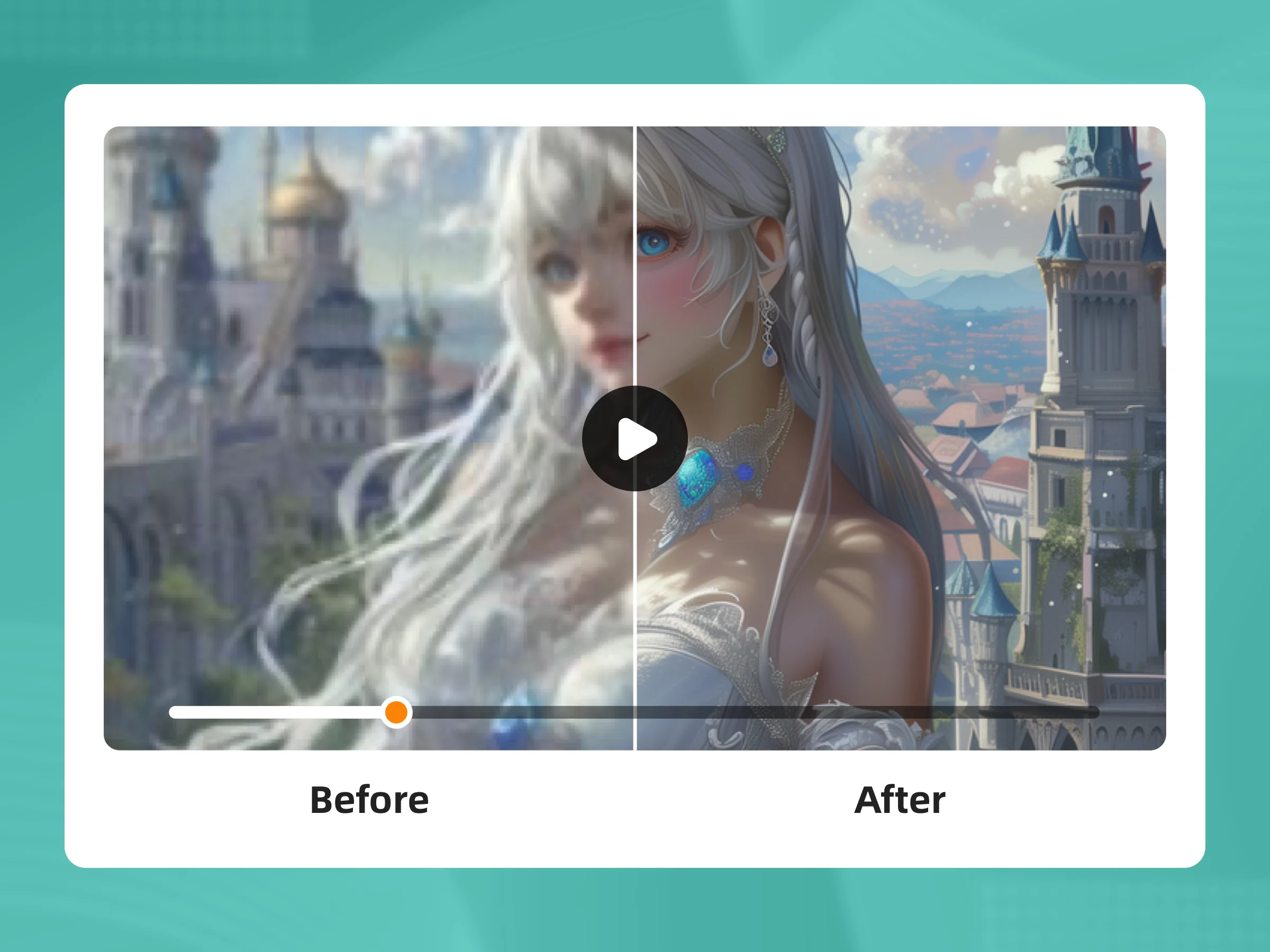
Using AI to enhance and upscale videos. Improve resolution to HD or 4K, restore details, reduce noise, and correct colors. Perfect for personal and professional use.
Redirects to Canva.com securely
App Preview
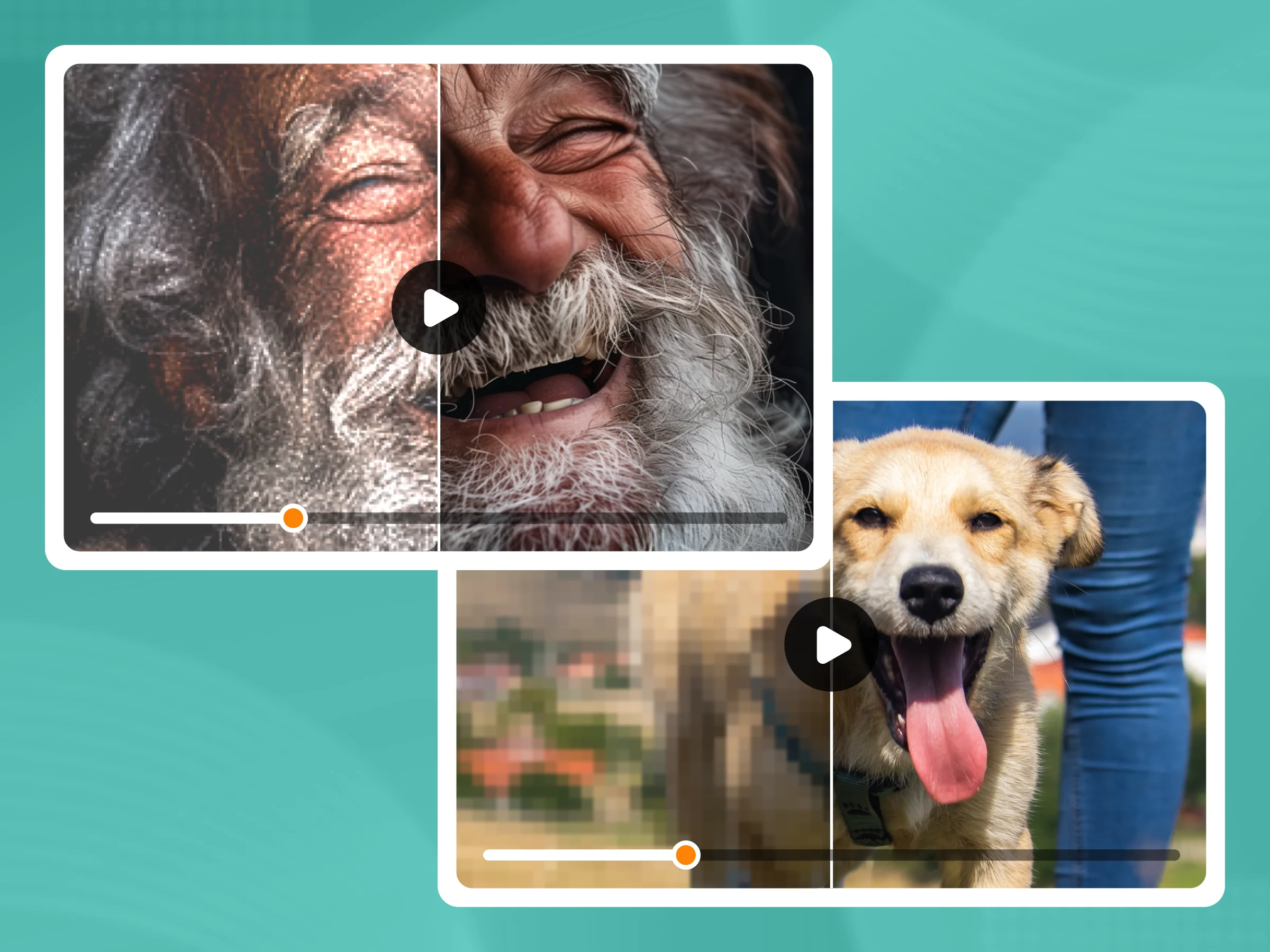
How to Upscale Videos in Canva
Transform standard resolution videos to HD or 4K quality using AI Video Upscaler
- 1
Open Video Upscaler App
Launch the Video Upscaler from Canva's app marketplace
Search for "Video Upscaler" in Canva and click "Try it now" to launch.
- 2
Upload Your Video
Select or upload a video from your device
Supported formats: MP4, MKV, MOV. Maximum file size: 30MB. Maximum duration: 60 seconds.
- 3
Select Target Resolution
Choose your desired output resolution
Options: HD (720p) - fast, Full HD (1080p) - balanced, 4K (2160p) - highest quality. Higher resolutions take longer to process.
- 4
Configure Enhancement Options
Optional: Enable noise reduction, color correction, or frame interpolation
These features enhance the video quality further. Enable based on your needs.
- 5
Start Processing
Click "Generate" and monitor the progress bar
Processing time varies by video length and resolution. You can minimize the app while processing.
- 6
Download Your Video
Once complete, download the upscaled video
You can preview before downloading. Video will be ready for download or insertion into your Canva design.
You're all set!
Follow these steps to get the best results. For more detailed tutorials, check out our video guides.
FAQ - Video Upscaler
Common questions about Video Upscaler